Piso WiFi vendo software · Orange Pi

Run your own piso-WiFi vendo. Simple, reliable, yours.

CoinFi turns a small Orange Pi board into a coin-operated WiFi hotspot. Customers drop a coin and get online. You watch the sales, set the rates and manage every customer from your phone.

  • 14-day free trial, every feature
  • Orange Pi One, PC, PC Plus and Lite
  • Signed updates over the internet
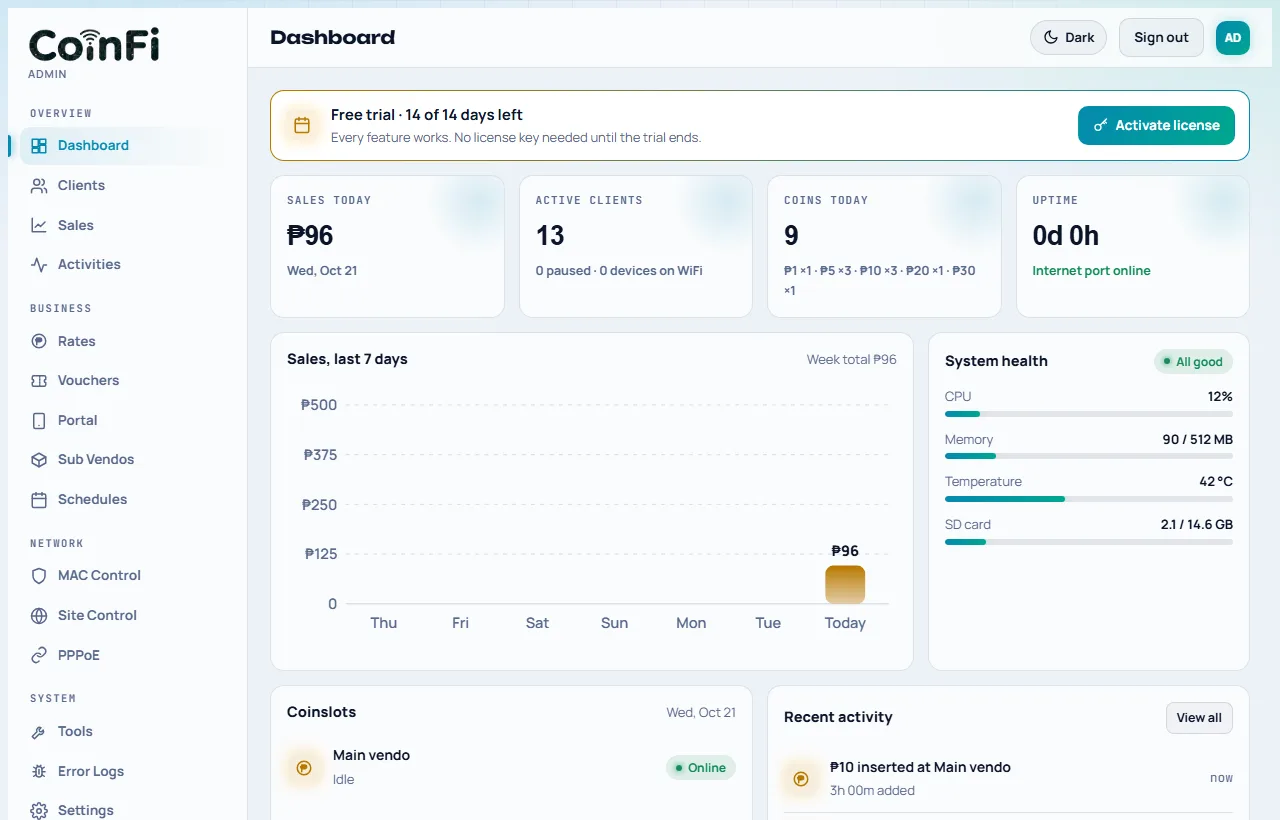
Admin panel
The CoinFi admin panel: sales today, active clients, coins and the week chart
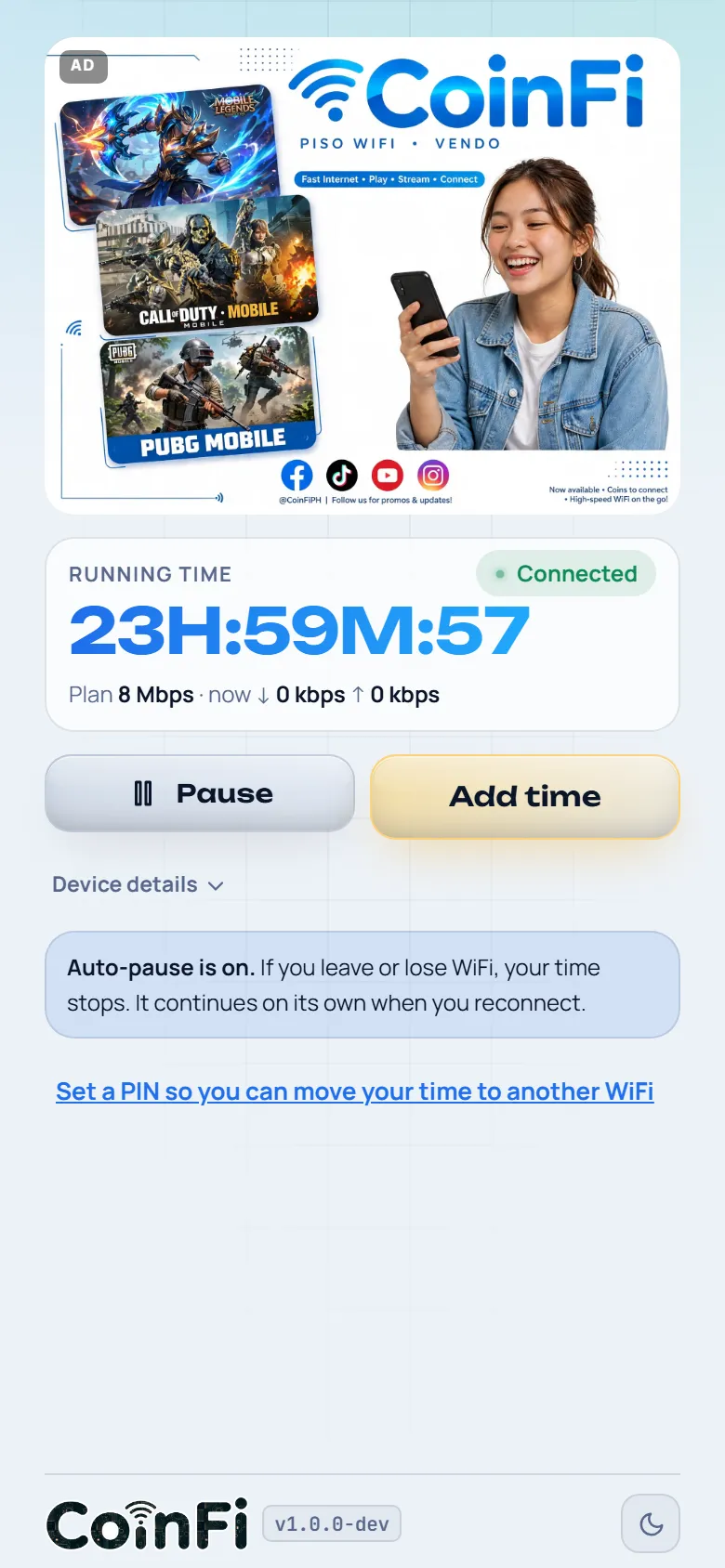
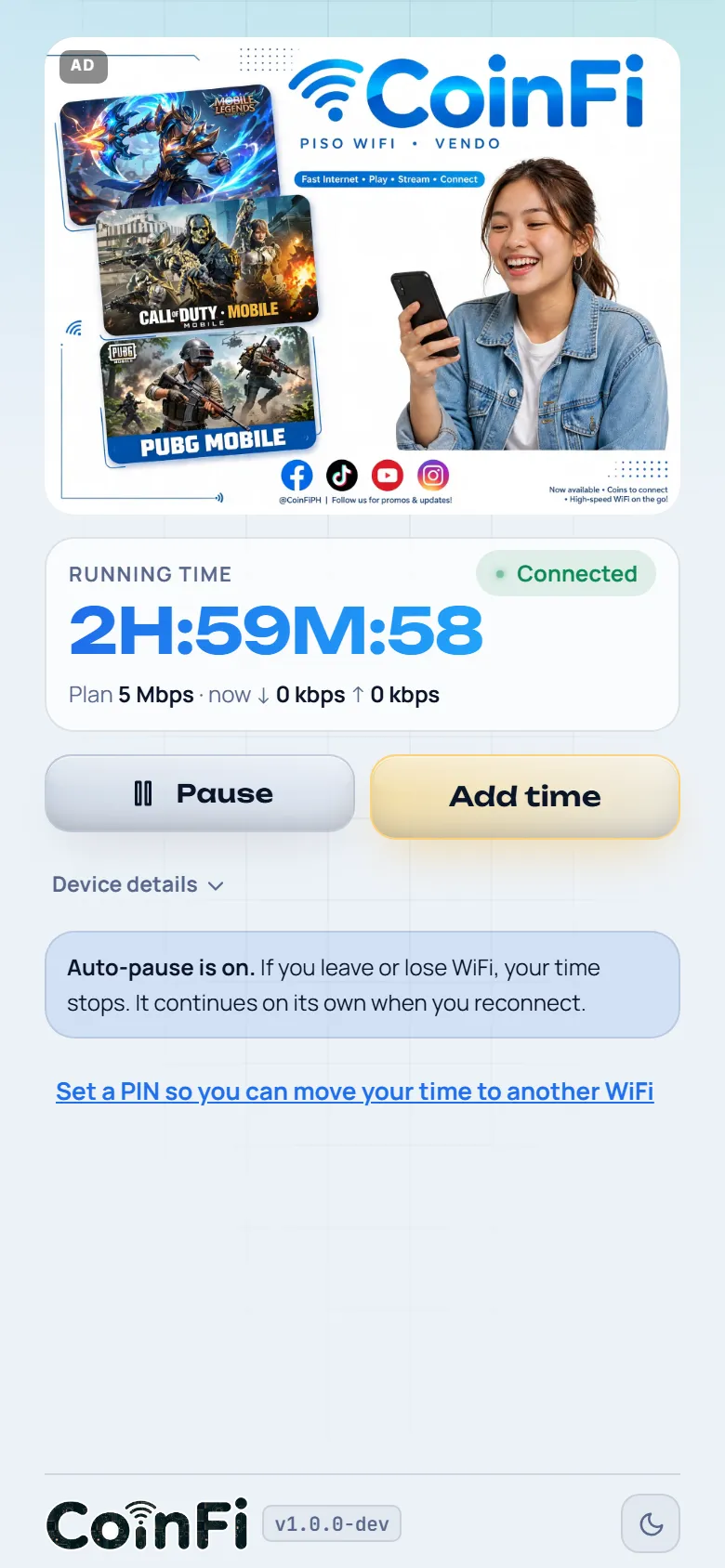
The customer screen on a phone: running time, Pause and Add time
14 daysfree trial with every feature
4 boardsOne, PC, PC Plus and Lite
1 imageflash the SD card and go
Safe updatessigned, checked, rolled back if they fail
Every feature explained

What each part does, in plain words

These are real screens of the CoinFi admin panel and customer page.

Rates and coins

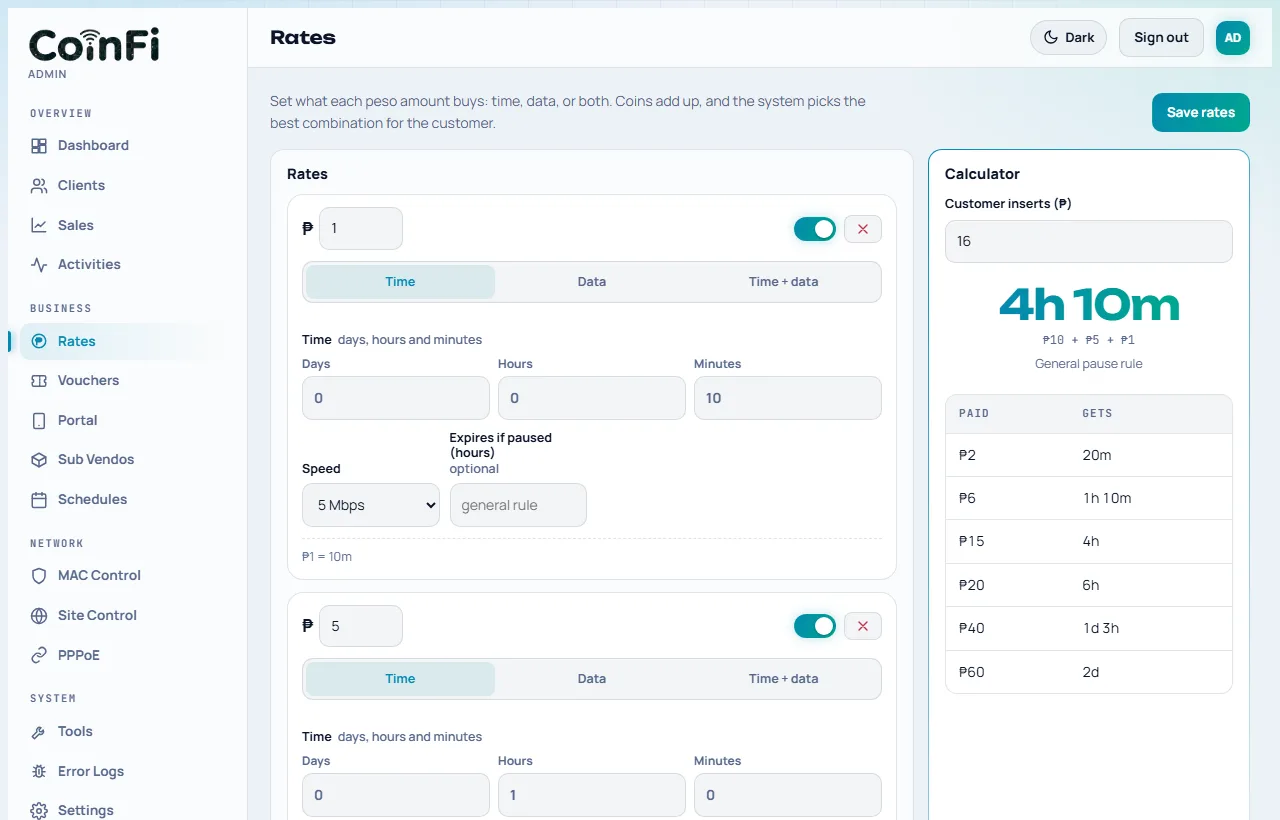
You decide what a coin buys. The default is ₱1 = 10 minutes, ₱5 = 1 hour, ₱10 = 3 hours and ₱30 = 1 day, and every line can be changed. A rate can sell time, a data pack or both, and can have its own expiry.

  • Best-combination adding. When a customer drops several coins, CoinFi adds them up and gives the best rate for the total. A ₱5 and a ₱1 coin are worth the same as a ₱6 purchase.
  • Every coin works. The coin acceptor sends a number of pulses per coin; you tell CoinFi how many pesos a pulse is worth.
  • The coinslot knows when it is really there. Customers only see a coinslot that is connected. The first coin through the acceptor (or the Detect button) tells the board an acceptor is attached.
Rates
The Rates page of the CoinFi admin panel

A customer page with your brand

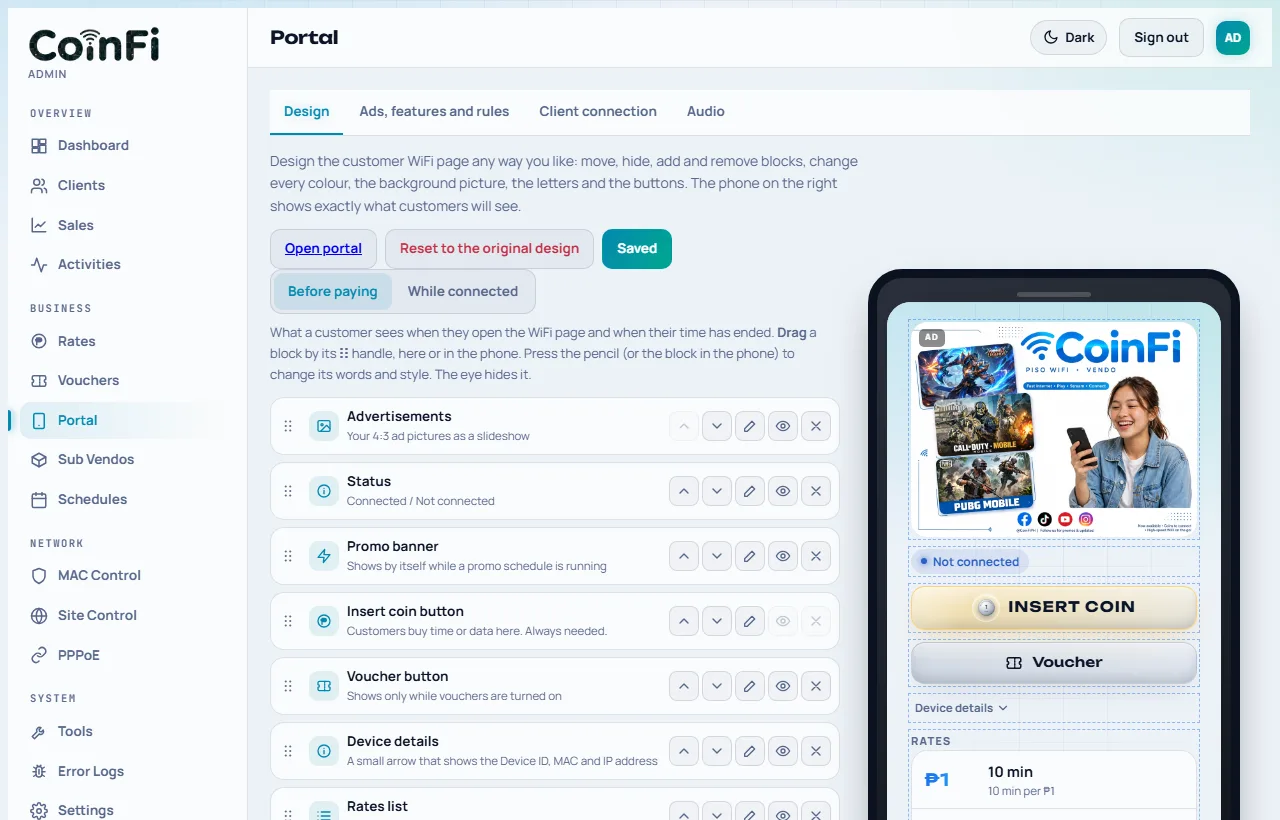
When a customer joins your WiFi, a page opens with your ads, the rates and a big Insert coin button. After paying they see their running time, their speed, and buttons to pause or add time. The Portal designer lets you change all of it by dragging.

  • Drag and drop design. Move, hide, add and remove blocks; change colors, corners, fonts (8 built in, or upload yours), the background picture and the look of the buttons. A phone preview shows exactly what customers will see. There is always a Reset to the original design.
  • Ads. Upload pictures and they play as a slideshow at the top of the page.
  • Sounds. A beep for every peso that is counted, a countdown while the coin window is open, and a chime when the customer goes online. Use your own MP3 if you like.
  • Chat. Customers can message you without paying; you answer from a floating messenger in the admin panel.
  • Show the speed. Customers can see their plan speed and their live speed.
The customer page before paying: ad, Insert coin, Voucher and the rates
Portal designer
The Portal designer with a live phone preview

Control every device

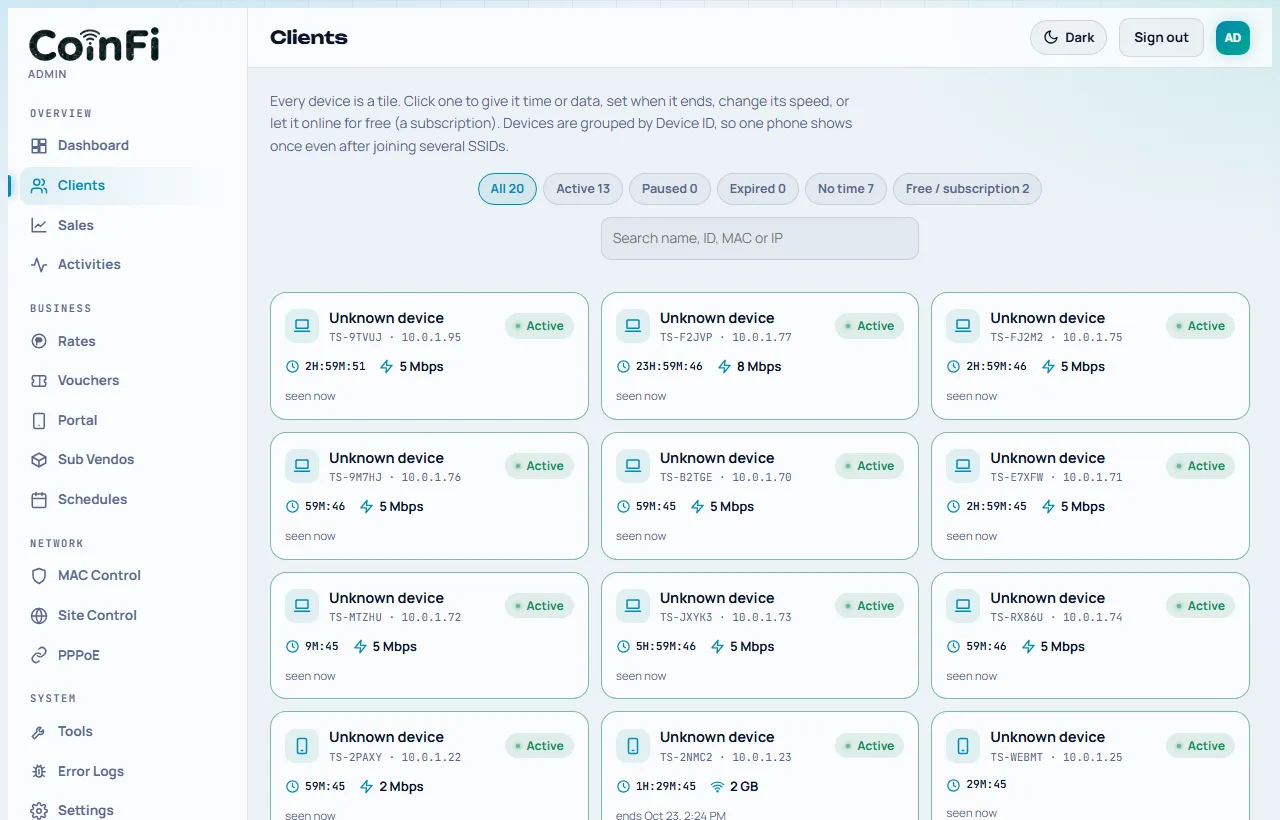
Every phone or laptop that uses your WiFi is a tile in Clients. Open one to see its time, data, speed and when it ends.

  • Give or take time in days, hours and minutes. Pause or continue a device. Give data. Set an end date.
  • Custom speed for one device, or free access / subscription (a whitelist entry with an end date, for regulars and staff).
  • MAC Control. Whitelist and blacklist devices by MAC address, give each a name (the tag), and a speed for the whitelist.
  • Site Control. Block websites by address.
  • One identity per phone. A customer keeps their time when they move between your access points or SSIDs. They can set a PIN to move their time to another WiFi.
  • No WiFi sharing. If a customer shares their phone's hotspot with friends, CoinFi notices the extra traffic and pauses that device's time. It never blocks and resumes by itself later.
Clients
Client tiles with time, speed and status

Fair speed for every customer

One heavy downloader should not slow everybody else. CoinFi gives each device its own speed lane, based on the rate it paid for.

  • Speed per rate. Each rate can have its own speed, so a bigger purchase can get a faster lane.
  • Global limits and fair sharing. Set the total download and upload for the whole vendo, and let CoinFi share it fairly among the people online.
  • Speed boost. Multiply everybody's speed during chosen hours (see Schedules).
  • Board-aware. The program reads the board's memory and Ethernet speed and tunes its limits, and shows how many customers the board can serve.
Settings · Network
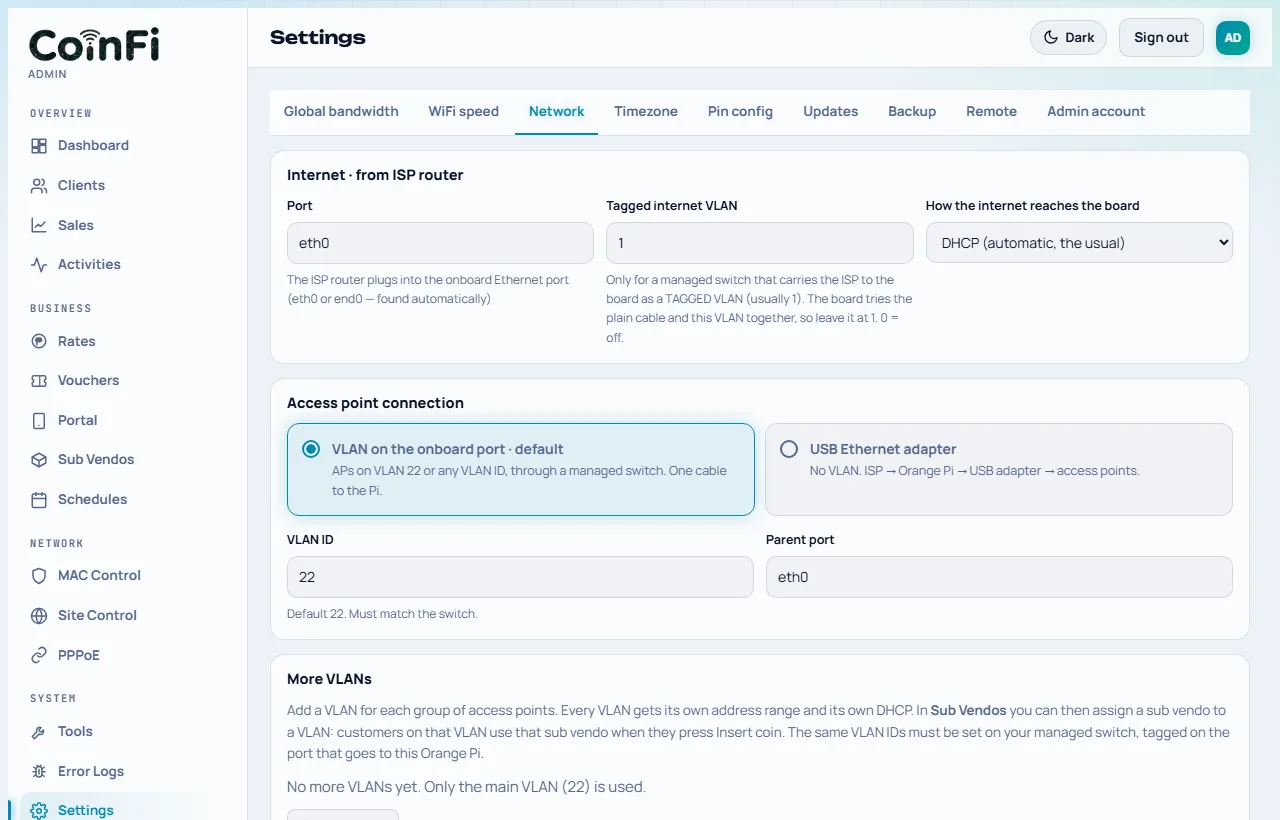
Network and bandwidth settings

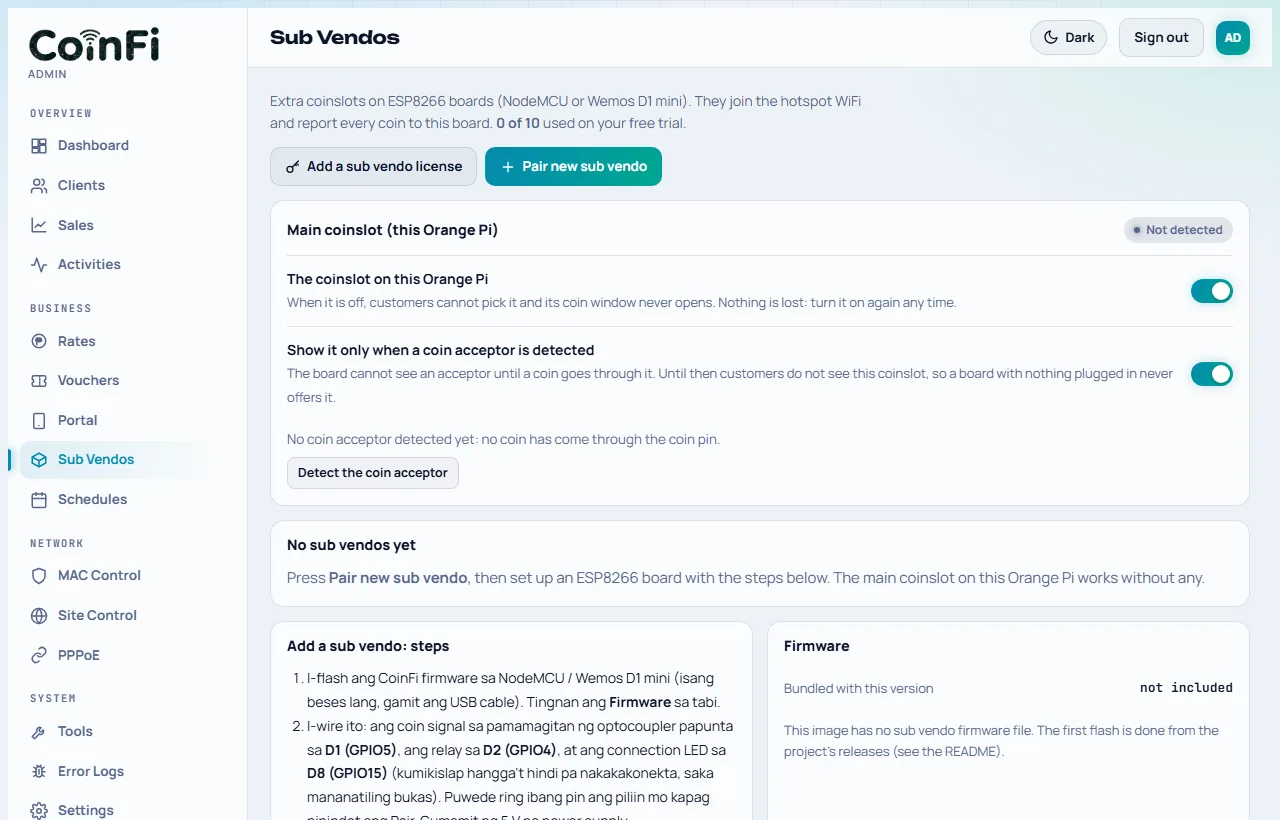
Sub vendos: more coinslots

A sub vendo is a second coinslot: a NodeMCU or Wemos D1 mini (ESP8266) with its own coin acceptor, a relay and an LED. It can sit in another shop or another corner of the same area and reports every coin to your main board.

  • Easy pairing. Make a pairing key in the admin panel, type it on the box's setup page, and it appears in your list.
  • Safe by design. Every message is signed, so copied or replayed messages are ignored. A coin is counted once. The box keeps coins it has not reported yet in its flash memory, and switches its coinslot off if the main board does not answer.
  • Wired option. The same firmware also drives a W5500 Ethernet module, so a sub vendo can use a LAN cable instead of WiFi.
  • Updates over WiFi. The firmware is carried in every CoinFi update.
  • Pick a VLAN. Assign a sub vendo to one access point VLAN so customers there use that coinslot.
  • Credits. Each license comes with some sub vendos bound to it (Standard: 1 sub vendo, Pro: 3 sub vendos). For more, buy sub vendo licenses and add them from the admin panel, signing in with your account.
Sub Vendos
The Sub Vendos page

Your network, your way

CoinFi works with a normal home router and also with managed switches and many access points.

  • One cable with VLANs. The ISP router and the hotspot share one cable to a managed switch. The hotspot VLAN is any ID you like (22 by default). Plain access points with no VLAN setting connect to the switch ports.
  • Or a USB Ethernet adapter. No VLAN needed: the adapter goes to your switch or access points.
  • More VLANs. Add up to 8 more access point networks, each with its own address range and DHCP. A coinslot can be assigned to a VLAN, so a VLAN only sees its own coinslot.
  • Your ISP connection. DHCP, a fixed address, or a PPPoE login from your ISP (with the VLAN tag some ISPs need).
Settings · Network
Network settings

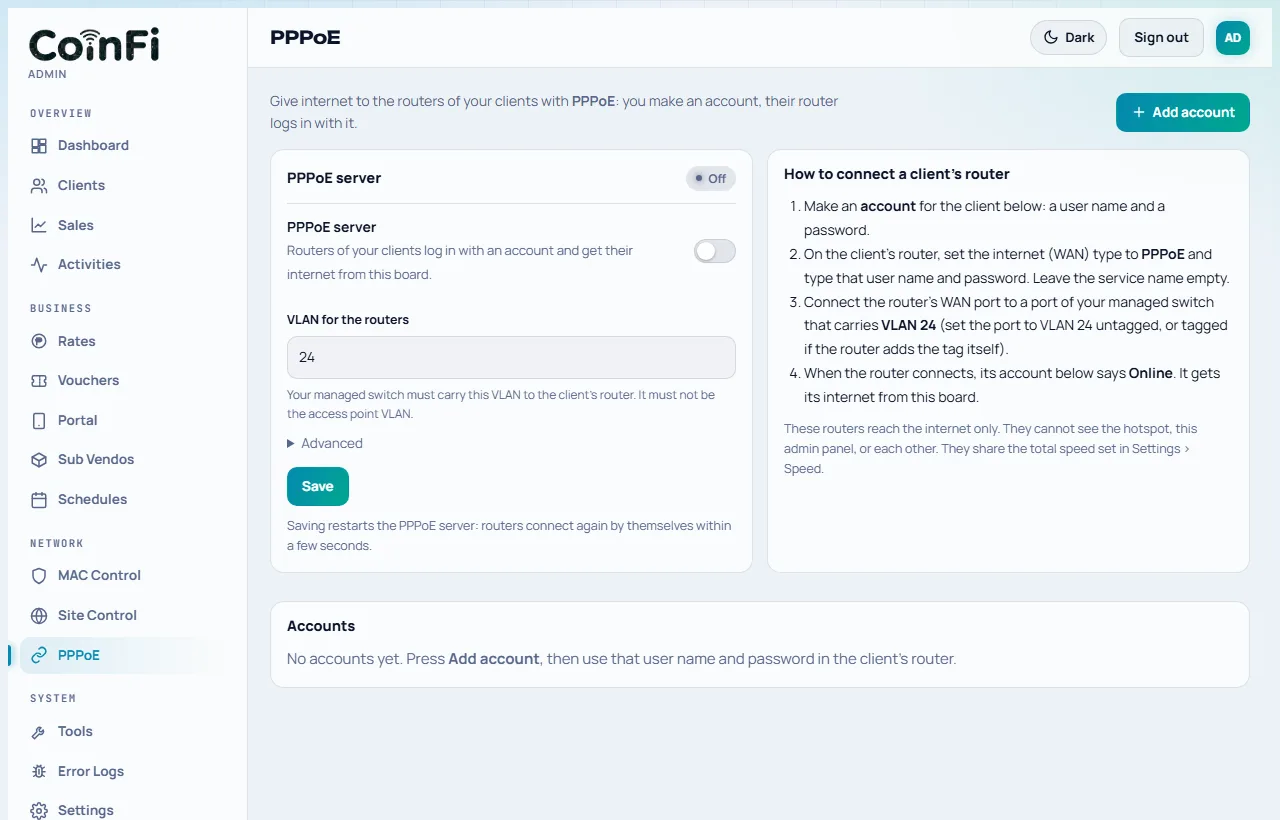
PPPoE server: internet for other routers

Do you also sell monthly internet to neighbors or small shops? CoinFi can act as the PPPoE server: you make an account for each client, and their router logs in with it.

  • An account per client with a user name, a password, an optional download and upload speed, and a last day.
  • See who is online with address, connection time and data, and disconnect a router with one tap.
  • Instant control. Switching an account off, deleting it, passing its last day or changing its password disconnects the router at once.
  • Kept apart. The routers reach the internet through your board and nothing else: not your hotspot, not your admin panel, not each other.
PPPoE
The PPPoE page with accounts and online routers

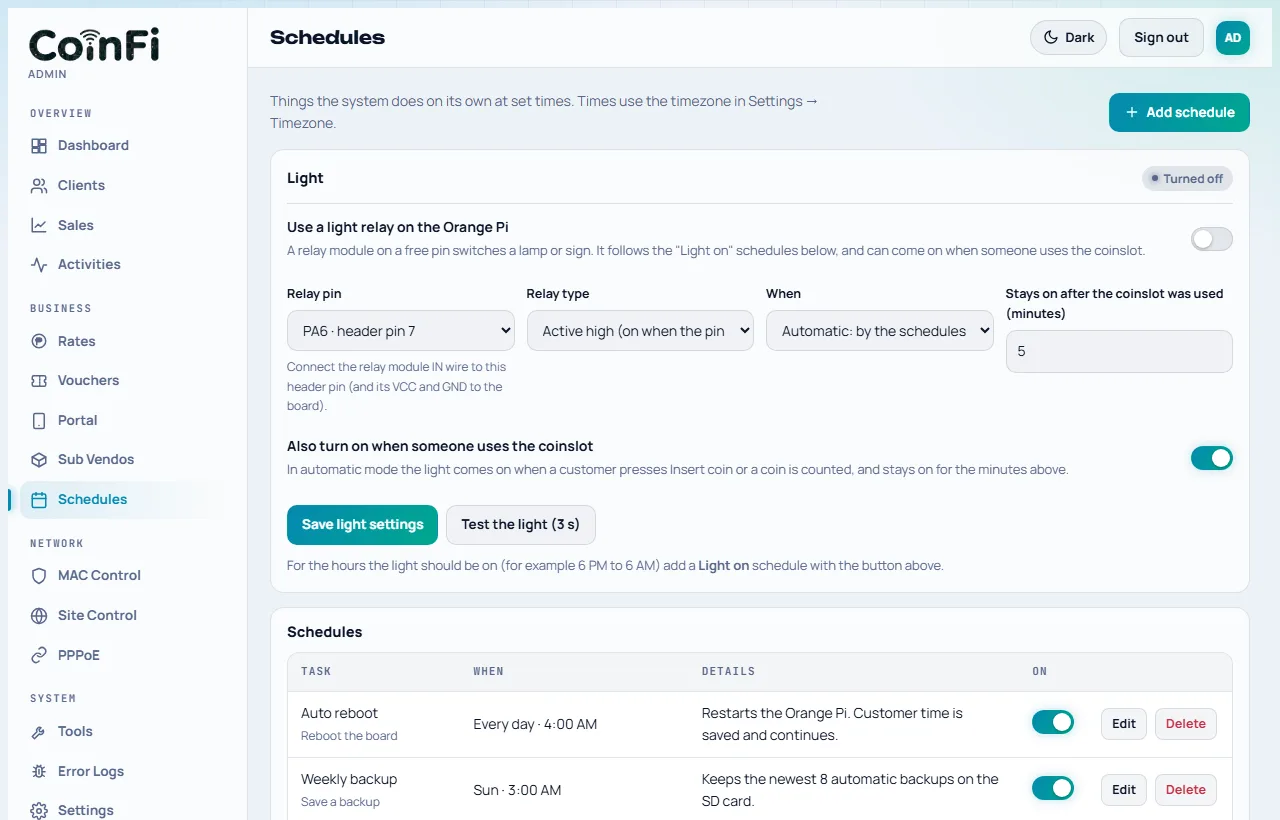
Schedules, promos and the light relay

Set it once and let it run. Schedules repeat on the days and hours you choose.

  • Promo hours. Give extra time (like ×2) for coins inserted in a window, for example on slow afternoons.
  • Speed boost. Faster internet for everybody at chosen hours.
  • Closed hours. The vendo closes: running time pauses and resumes when you open.
  • Housekeeping. Automatic reboot, backup, clean-up of old devices and update checks.
  • Light relay. A relay on a free pin switches a lamp or a sign on a schedule, and can also come on when someone uses the coinslot.
Schedules
The Schedules page

A customer's time is never lost

  • Saved every 10 seconds. After a power cut, every customer continues with the time they had.
  • Pause and resume. Customers can pause. Auto-pause stops their time when they leave your WiFi, and auto-resume continues it when they come back.
  • Coins are counted once. A sub vendo that restarts at the wrong moment never loses a coin and never counts one twice.
  • Checks itself. The system checker tests the DHCP, firewall and internet and fixes what it can. Error codes explain problems in plain words, and a debug bundle can be sent for help.
The customer page with the running time, Pause and Add time

And more

Vouchers

Make codes of 6 letters and numbers (with an optional prefix and suffix, like TS) for a rate or for any days, hours and minutes. Customers type them in any case. Wrong guesses are slowed down.

Remote access

Join your board to a ZeroTier network and open the admin panel from anywhere. The page shows the address to use and checks the connection in plain words.

Online updates

New versions are signed and checked before they are installed. If a new version keeps failing, the board goes back to the old one by itself. You can also install an update file.

Backups

A weekly automatic backup, a download button, and a restore from the panel (it checks the file first and keeps your old data).

Sales and activity

Sales today and this week, coins by value, every coin and every action in the activity list.

Customer chat

A chat button on the customer page and a messenger in your panel with an unread badge and a sound.

Tools

Speed test, relay and LED tests, system checker, reboot and shut down buttons, and the error log.

Secure by default

The first sign-in forces a new admin password, wrong passwords are slowed down, and every sub vendo message is signed.

Licenses you control

Your license is in your account on this website. Move it to another board when you upgrade, add sub vendo licenses, and see everything you own in one place.

How it works

From a bare board to your first customer

  1. 1

    Flash the SD card

    Download the image below and write it to a 16 GB or larger microSD card with balenaEtcher. Put the card in the Orange Pi.

  2. 2

    Connect the cables

    The cable from your router goes to the Orange Pi. Wire the coin acceptor through an optocoupler and the relay to the header pins (the admin panel shows them).

  3. 3

    Open the admin page

    Sign in with Admin / Admin12345 and choose your own password. Set your rates, your network and your portal design.

  4. 4

    Start selling

    Join the WiFi on a phone: the CoinFi page opens. Drop a coin, and you are online. Your 14-day trial has every feature.

What you need

An Orange PiOne, PC, PC Plus or Lite, with a good 5 V power supply.
A microSD card16 GB or larger, A1 class.
A coin acceptorProgrammable multi-coin type. Use an optocoupler between its 12 V signal and the board.
Access pointsPlain access points on a managed switch (VLAN), or behind a USB Ethernet adapter.
For sub vendos (optional)A NodeMCU or Wemos D1 mini, a coin acceptor, a relay and an LED for each box.
A phone or computerTo open the admin panel.
Pricing

One license per board. Try it free first.

Every board starts with a 14-day free trial with every feature. Then you activate a license from your account. Prices are in Philippine pesos.

Standard

₱500 one-time

One CoinFi board. Comes with 1 sub vendo; add more with sub vendo licenses.

  • 1 sub vendo included, already bound to the license
  • Online updates
  • Remote access (ZeroTier)
  • PPPoE server for other routers
  • More than one access point VLAN
  • Light relay
  • Vouchers
  • Priority support
  • Move it to a new board up to 3 times a year
  • Lifetime license, no renewal
Buy Standard
Most chosen

Pro

₱800 one-time

One CoinFi board with every feature. Comes with 3 sub vendos; add more with sub vendo licenses.

  • 3 sub vendos included, already bound to the license
  • Online updates
  • Remote access (ZeroTier)
  • PPPoE server for other routers
  • More than one access point VLAN
  • Light relay
  • Vouchers
  • Priority support
  • Move it to a new board up to 3 times a year
  • Lifetime license, no renewal
Buy Pro
Add-on

Sub vendo license

₱150 each

Adds 1 more sub vendo to your board license. Type its code on your board with the e-mail and password of your account.

  • Adds 1 sub vendo to your board license
  • On your board, type its code with your e-mail and password: that binds it to your account
  • Buy as many as you need
Buy Sub vendo license

You pay with GCash. After your payment is confirmed, the license code appears in your account and you type it in your CoinFi admin page (Device, License) together with the e-mail and password of your account. Vendo builder or reseller? Ask about builder prices at [email protected].

Download

Get the CoinFi SD card image

The same image runs on the Orange Pi One, PC, PC Plus and Lite. It starts as an Orange Pi One; pick your board in the admin panel if it is another one.

Coming soon

The first public download is being prepared. Write to [email protected] and we will send you the link.

Create an account to be ready

The image is free to try for 14 days. After the trial the coinslot and vouchers stop selling new time until you activate a license; customers can finish the time they already paid for.

  1. Write it to the card. Use balenaEtcher. It reads the .img.xz file directly. Use a 16 GB or larger microSD card.
  2. Power the Orange Pi. Plug the cable from your router into its Ethernet port, then power it on. The first start takes 3 to 5 minutes.
  3. Find the admin page. Look for a device named tscoinsoft-xxxx in your router's client list and open http://its-address/admin. No router? Plug a computer straight into the board and open http://169.254.10.10/admin.
  4. Sign in. User Admin, password Admin12345. You must choose a new password.
  5. Activate your license in Device, License when your trial ends, with the code and the e-mail and password of your account.
Questions

Frequently asked questions

Which boards does it run on?

The Orange Pi One, PC, PC Plus and Lite (all Allwinner H3 boards). One image serves all four: it starts as an Orange Pi One, and Admin, Device, Board type switches it to the model you have.

What happens after the 14-day trial?

Every feature works during the trial. After it ends, the coinslot and vouchers stop selling new time until you activate a license. Customers can finish the time they already paid for.

How do I activate a license?

Create an account on this website with your e-mail, buy a license and pay with GCash. The license code shows in your account. Type it in your CoinFi admin page under Device, License, with the e-mail and password of your account (and the code of your authenticator app if you turned on two-step login). That proves the license is yours, so a code that was lost or stolen is of no use to anyone else. The code is bound to that one board.

Can I use one license on two boards?

No. A license works on one board at a time. The website checks it, and a code that is in use cannot be activated on another board. If you get a new board, release the license from the old one in your account (or on the board) and activate it on the new one. The number of moves per year depends on the license type.

How do I add more sub vendos?

Each license comes with some sub vendos already bound to it. For more, buy sub vendo licenses. In your admin page open Sub Vendos, press Add a sub vendo license and type its code. CoinFi asks for the e-mail and password of your account on this website, which proves the license is yours and binds it to your account and your board's license.

Does the board need internet all the time?

Your vendo needs an internet connection to sell internet, of course. For the license, the board contacts this website every few days. If it cannot, the license keeps working for a grace period of up to 14 days.

What if the power goes out?

Customer time is saved every 10 seconds and the coinslot counts every coin once, so after the power returns each customer continues with the time they had.

How are updates installed?

From the admin panel: check for updates and install. New versions are signed and verified, a copy of the old program is kept, and if the new one keeps failing, the board goes back to the old one by itself. You can also install an update file.

How do I pay for a license?

With GCash. You get the exact amount and the GCash number on your order page, send the money, and type the reference number from your receipt. Your license is delivered as soon as the payment is confirmed.

Ready to start your vendo?

Download the image, flash the card and have your first customer online today.